
Deploy Alice on Railway.
From the deploy button to your first Telegram song. Follow the screenshots, fill your values, and let Railway install Alice.
This walkthrough uses the Alice Music Bot template and a real deployment tested on 20 November 2026. Your project name and account balance will differ.
Before you begin
Sign in to Railway and have your Telegram and MongoDB values ready. This page covers deployment only.
For the assistant session, use @elite_session_maker_bot and choose Pyrogram v2. Use the resulting string for STRING_SESSION.
1. Open the deploy button
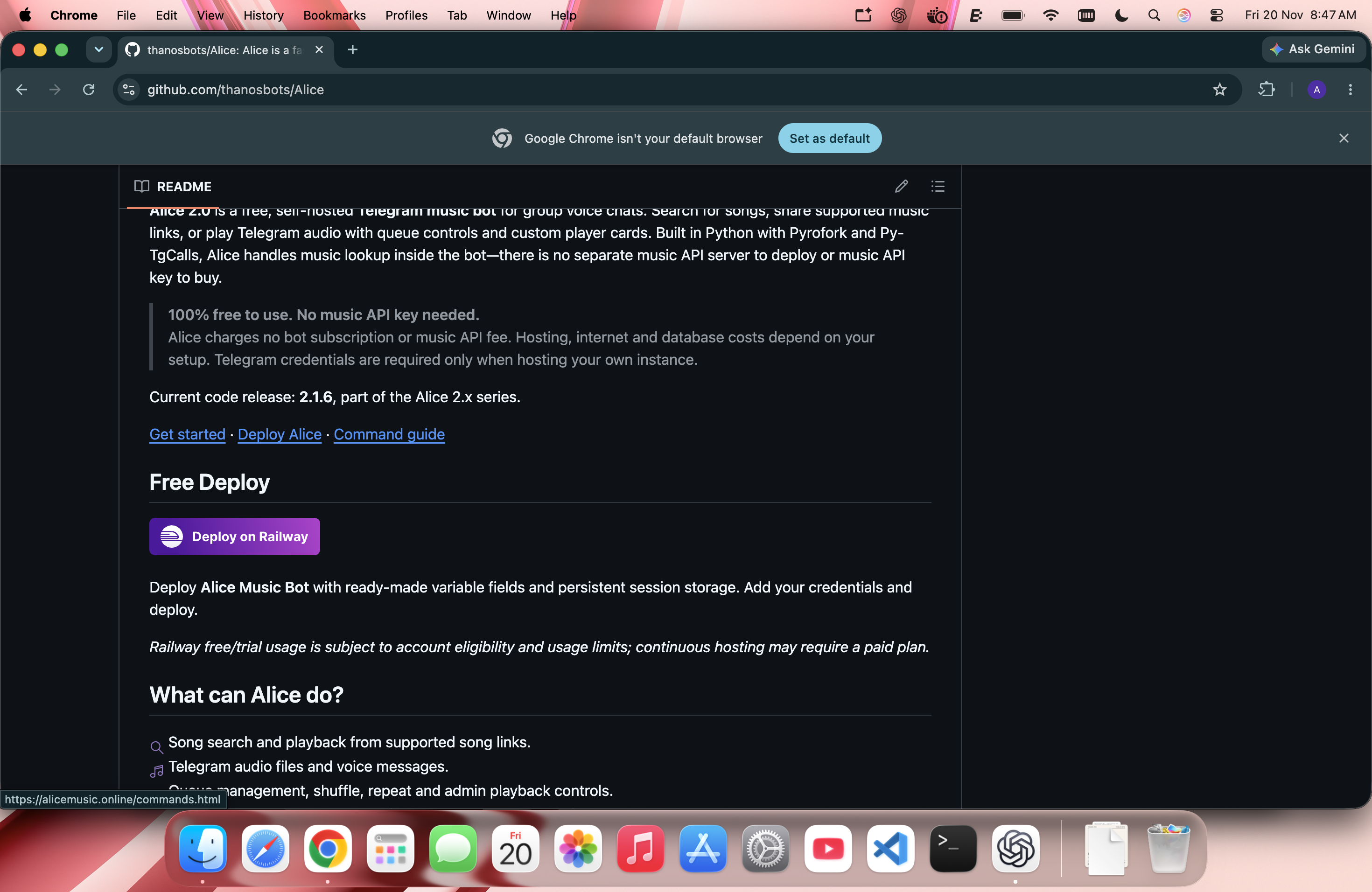
On the Alice GitHub repository, scroll to Free Deploy and select Deploy on Railway.
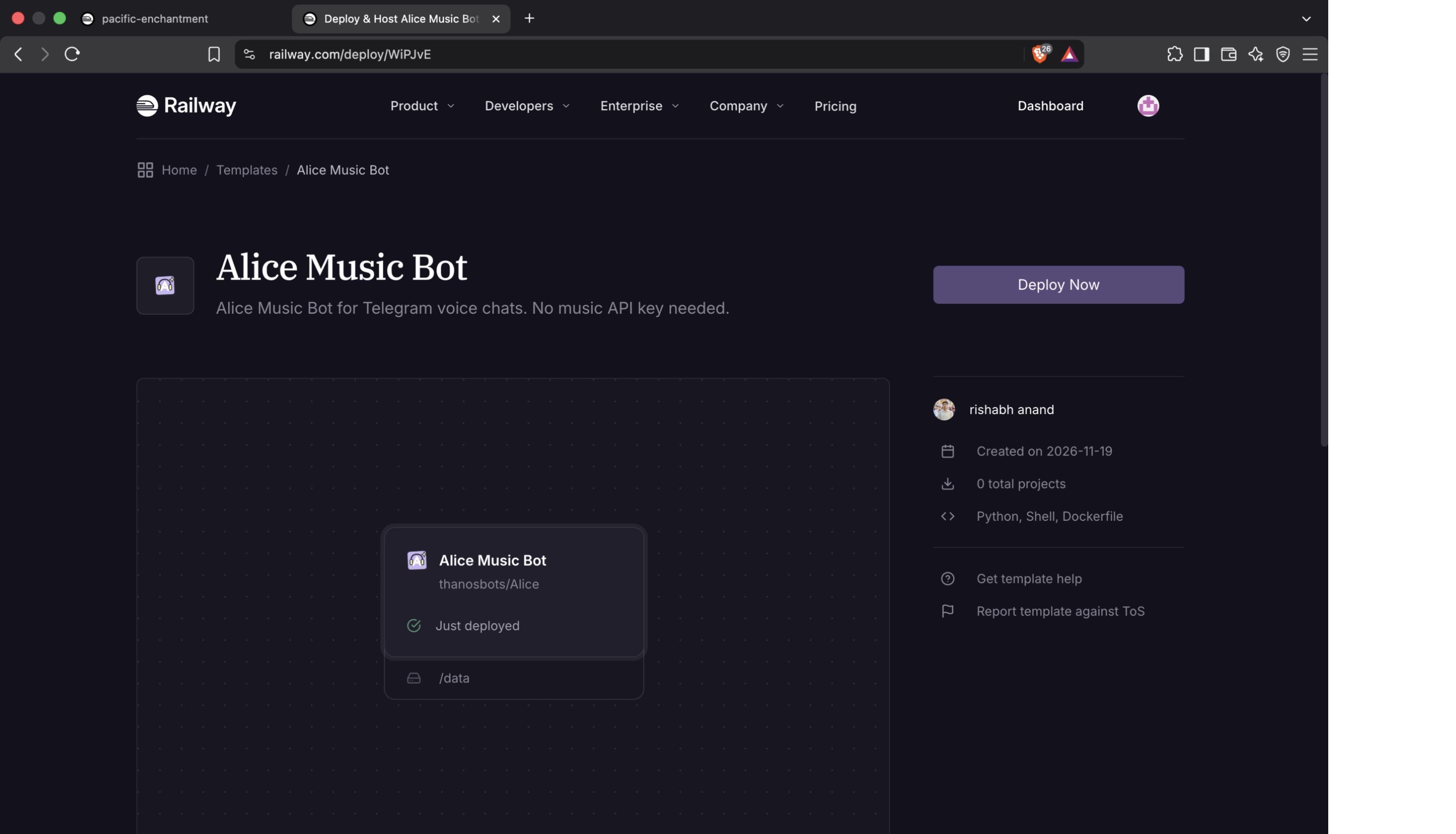
2. Choose Deploy Now
Check that the template is Alice Music Bot, then select Deploy Now.
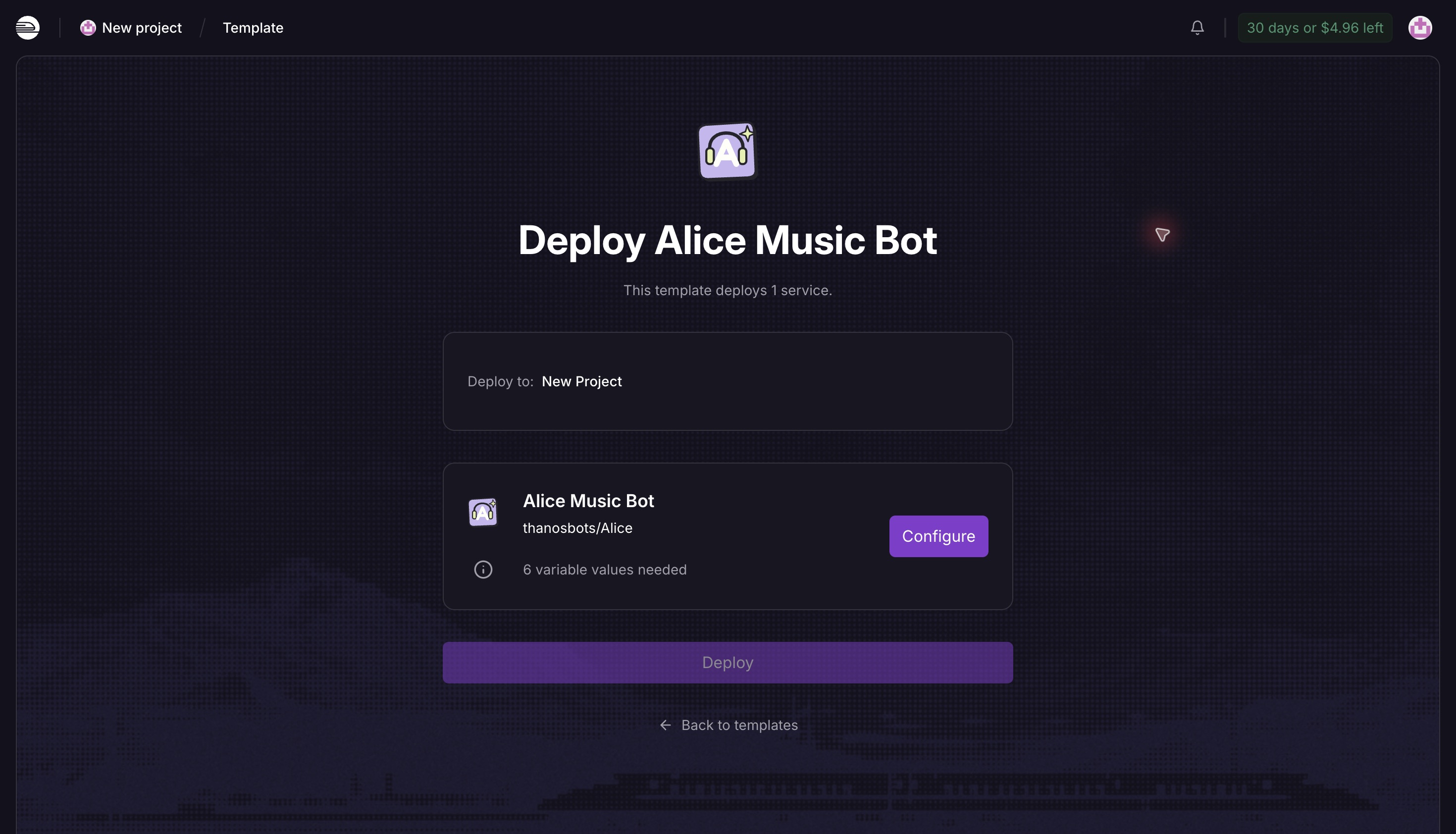
3. Configure Alice
Choose New Project and select Configure on the Alice Music Bot card. The template already includes the repository, variable names and persistent storage.
4. Fill the variable values
Enter your own values in the existing fields. Paste values without surrounding quotation marks, spaces or line breaks.
| Field | Value to enter |
|---|---|
| API_ID | Your numeric Telegram API ID. |
| API_HASH | The matching Telegram API hash. |
| BOT_TOKEN | Your bot token from BotFather. |
| OWNER_ID | Your personal numeric Telegram user ID. |
| MONGO_URL | Your MongoDB connection URI. |
| STRING_SESSION | Your assistant’s Pyrogram v2 session string. |
| LOG_GROUP_ID | Your log group ID, including the minus sign, or 0 to disable log messages. |
Keep SESSION_DIR=/data and ALICE_MANAGED_DEPLOYMENT=1 unchanged. Keep the template’s /data volume. Save the configuration; when the card is ready, select Deploy. Do not paste credentials into GitHub or public screenshots.
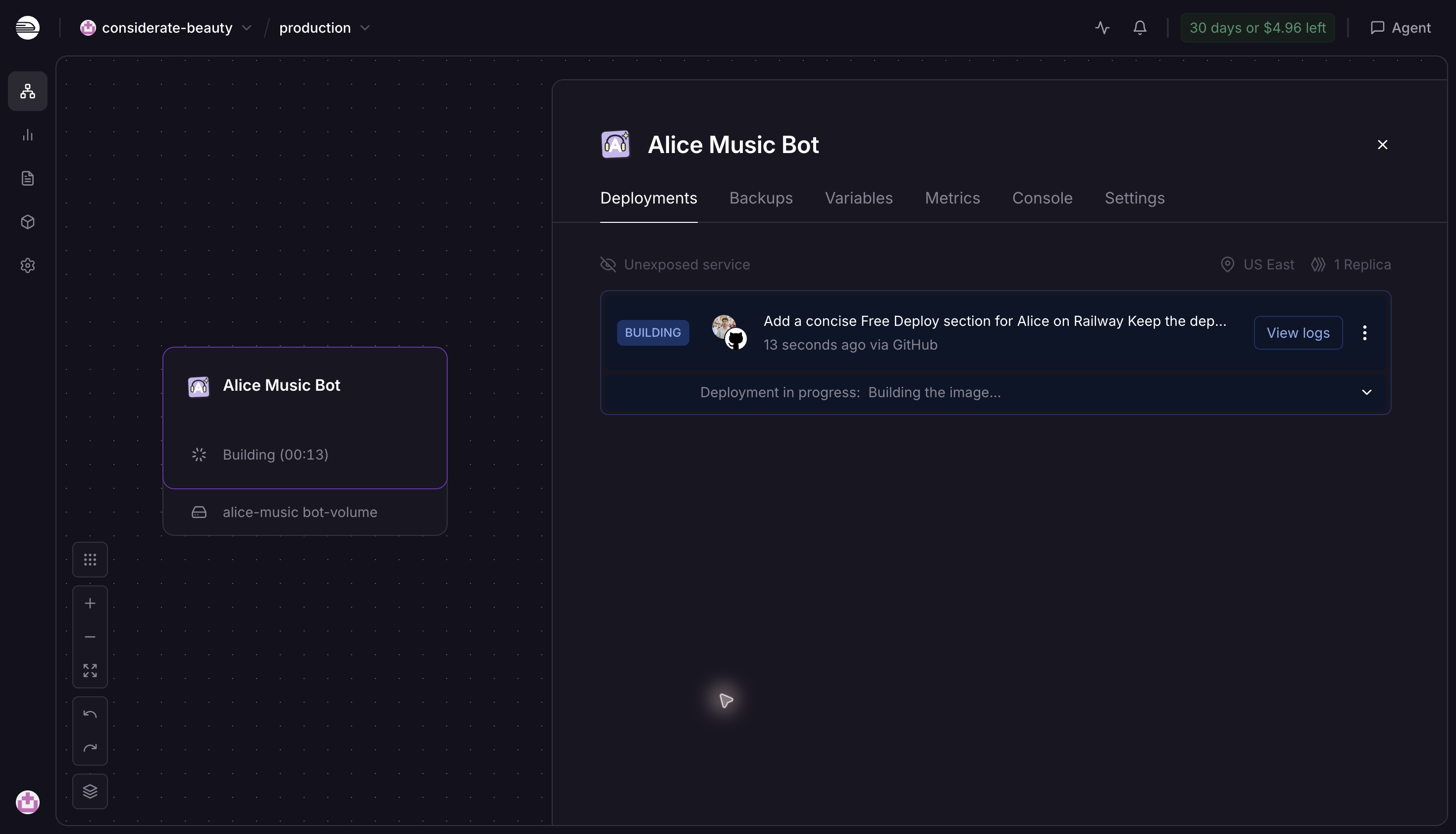
5. Wait for the build
Open the Alice Music Bot service and its deployment. Railway installs the dependencies and starts the container automatically. You do not need to run setup commands or expose a public web domain.
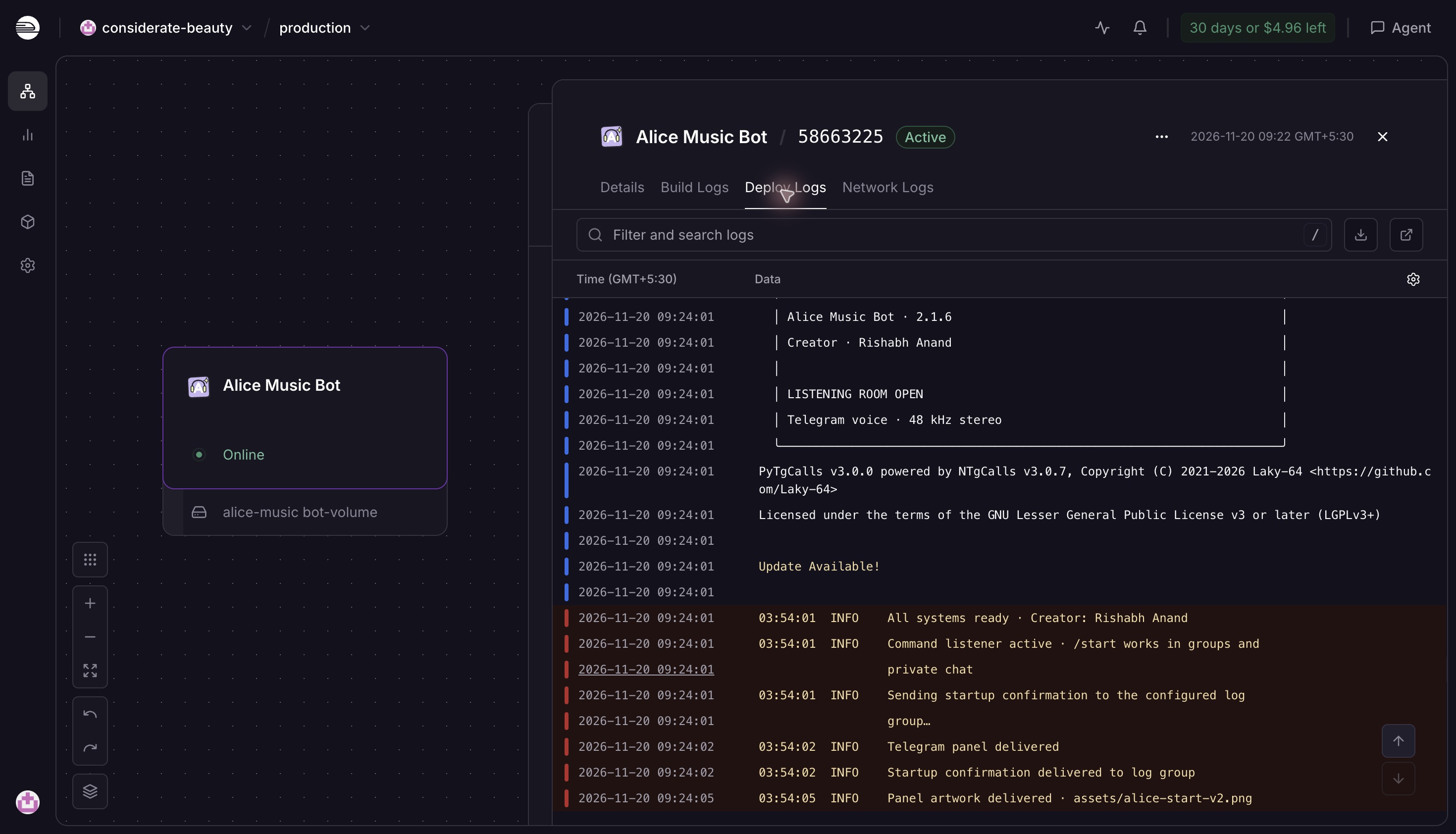
6. Confirm startup in Deploy Logs
Open Deploy Logs. Look for Bot connected, Assistant connected and All systems ready. An Online label alone does not confirm Telegram login.
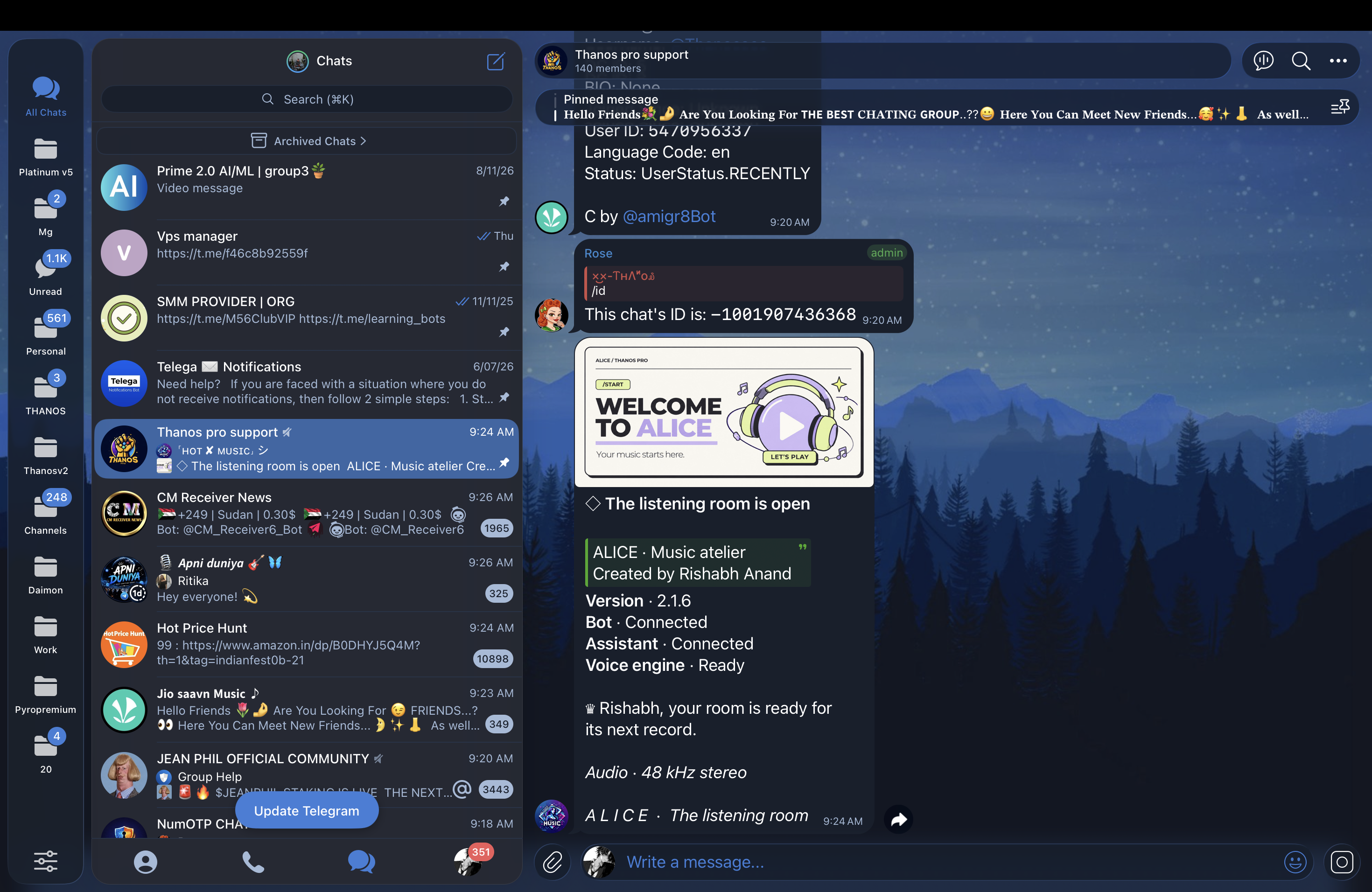
If you configured a log group and the bot can send messages there, Alice also sends a startup confirmation.
7. Play your first song
- Add your deployed bot to a Telegram group and make it an admin with permission to manage voice chats and invite users.
- Start a group voice chat. The assistant must be able to join and speak.
- Send
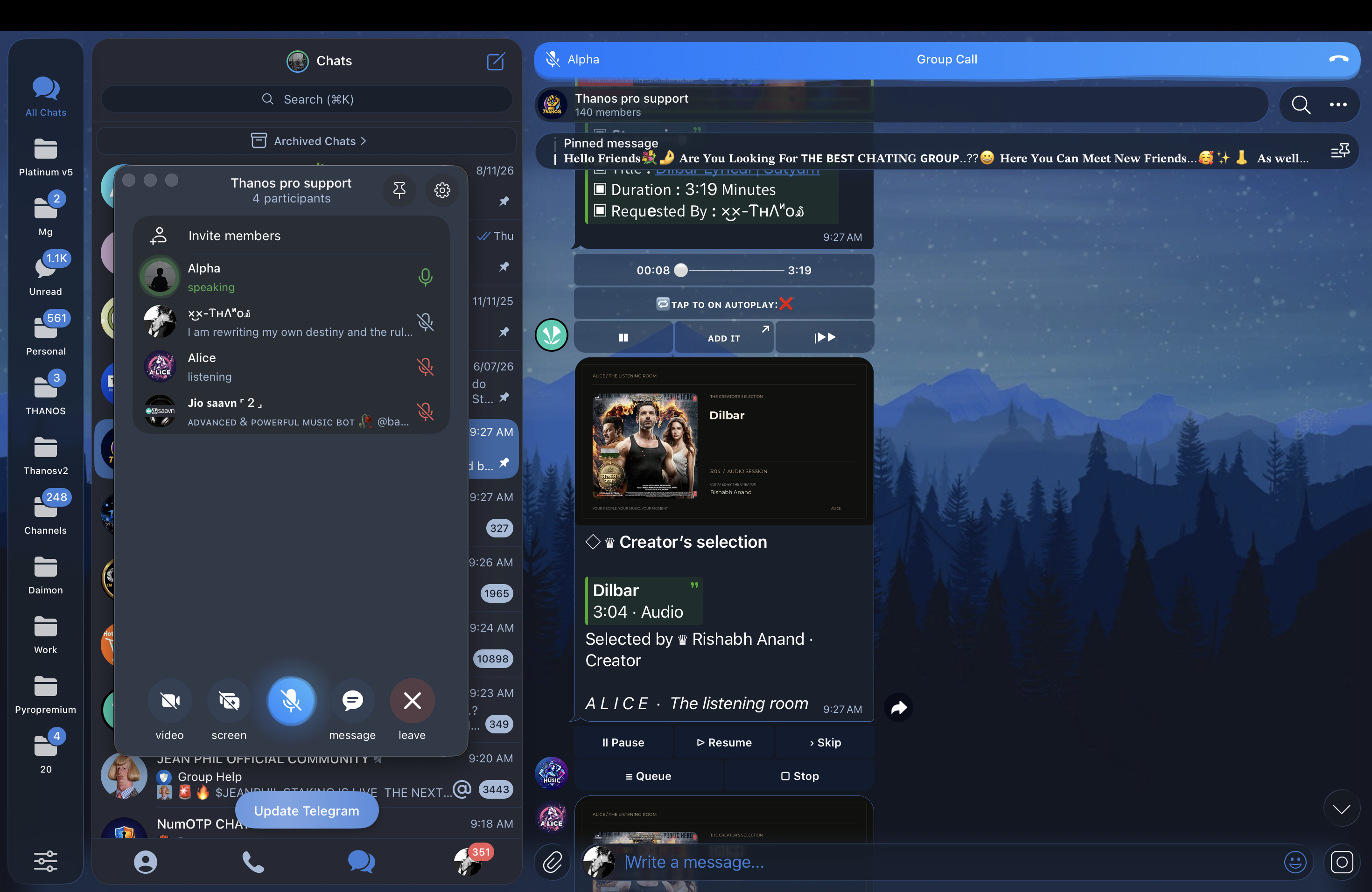
/play dilbarand join the call to listen. - Check the Alice player card. Try Pause, Resume and Stop.
The example below shows the user’s Telegram test and Alice’s Dilbar player card. Other music bots were also present in this test group; use your own deployed bot when testing.
If something fails
- Missing variables: check the Alice service’s Variables tab. Project Shared Variables must be linked to the service before it can use them.
- Telegram login fails: check the API pair, bot token and Pyrogram v2 session.
- Database connection fails: check the URI, database user and Atlas network access settings.
- No audio: check the assistant’s group membership and speaking permission, then read Deploy Logs.
For updates, redeploy through Railway. The bot’s in-chat updater does not replace a Railway deployment.
KEEP GOINGExplore Alice commands